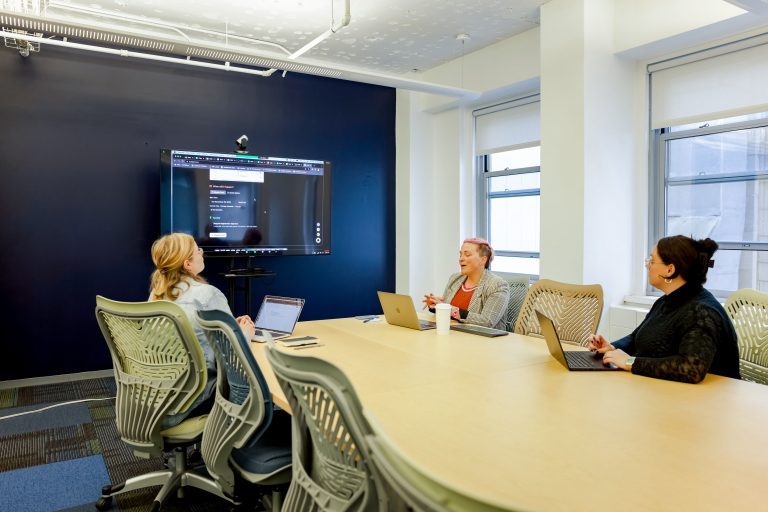
Meeting Rooms
Room names: Lovelace | Babbage | Cerf | Conference Room A, B, C, & D | Collaboration Room X & Y
In-room technology:
- iPad Controller with Zoom Controller App
- Tap New Meeting button located on in-room IPAD
- You will have access to the in-room meeting controls (same as on your laptop)
- From here, you have access to invite participants and change all zoom meeting settings.
If you know/have the Meeting ID, you can join a meeting currently in progress from the Zoom Room Controller on the iPad.
- From the home screen, tap join. The keypad will display.
- Enter the Meeting ID of the meeting you want to join
- Tap Join.
You’ll need your Laptop or Phone.
You do not need to be a zoom company to use the screen sharing feature.
- Click the share button on the IPAD screen
- Instructions will appear for the app or browser directly on the IPAD
- If prompted, allow your web browser to open Zoom
- Select the screen or application you want to share, then click Share
All TeamWorking Zoom-enabled rooms can now seamlessly connect to Google Meet, Microsoft Teams, and Cisco WebEx.
- Locate the iPad or Zoom Room Controller in your meeting space.
- Press the home icon on the screen’s left side to access the home screen.
- On the home screen, you will see three icons representing Google Meet, Microsoft Teams, and Cisco WebEx.
- Identify the video conferencing software you need for your meeting (Google Meet, Microsoft Teams, or Cisco WebEx).
- Tap the corresponding icon for the software you need.
- A prompt will appear asking for the meeting ID.
- Enter the meeting ID provided for your meeting (usually found in the meeting invitation or shared by the host).
- If a password is required, enter it when prompted.
- After entering the correct meeting details, the meeting will launch automatically.
 Babbage Meeting Room
Huddle Rooms
Room Names: Borg | Carver | Conway | Franklin | Hamilton | Hopper | Johnson | Kilby | Lamarr | Pascal | Tesla
Getting ConnectedEach enabled huddle room will have instructions on how to screen share directly on the screen!
Need additional assistance? Please reach out to [email protected] or locate your point of contact!
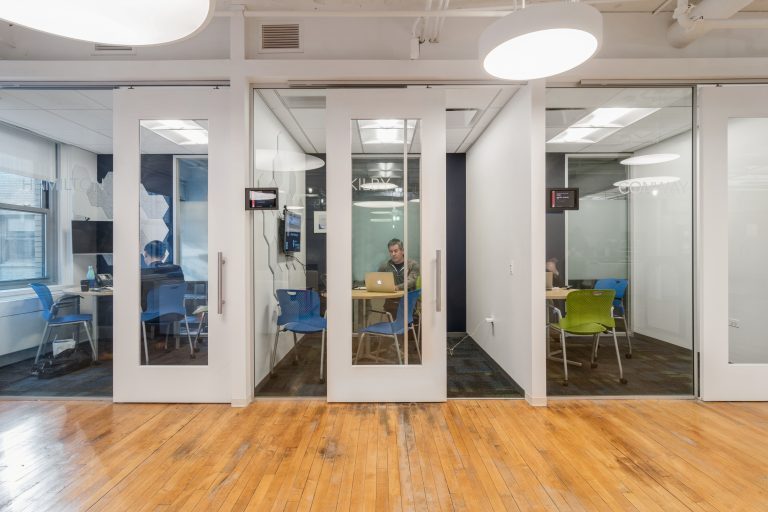 Private Huddle Rooms
The Technology-Forward Carts
In-room technology:
- Poly Studio X30 All-In-One Video Bar
- Controller iPad with pan, tilt, and zoom camera control
- Tap New Meeting button located on in-room IPAD
- You will have access to the in-room meeting controls (same as on your laptop)
- From here, you have access to invite participants and change all zoom meeting settings.
If you know/have the Meeting ID, you can join a meeting currently in progress from the Zoom Room Controller on the iPad.
- From the home screen, tap join. The keypad will display.
- Enter the Meeting ID of the meeting you want to join
- Tap Join.
You’ll need your Laptop or Phone.
You do not need to be a zoom company to use the screen sharing feature.
- Click the share button on the IPAD screen
- Instructions will appear for the app or browser directly on the IPAD
- If prompted, allow your web browser to open Zoom
- Select the screen or application you want to share, then click Share
All TeamWorking Zoom-enabled rooms can now seamlessly connect to Google Meet, Microsoft Teams, and Cisco WebEx.
- Locate the iPad or Zoom Room Controller in your meeting space.
- Press the home icon on the screen’s left side to access the home screen.
- On the home screen, you will see three icons representing Google Meet, Microsoft Teams, and Cisco WebEx.
- Identify the video conferencing software you need for your meeting (Google Meet, Microsoft Teams, or Cisco WebEx).
- Tap the corresponding icon for the software you need.
- A prompt will appear asking for the meeting ID.
- Enter the meeting ID provided for your meeting (usually found in the meeting invitation or shared by the host).
- If a password is required, enter it when prompted.
- After entering the correct meeting details, the meeting will launch automatically.